

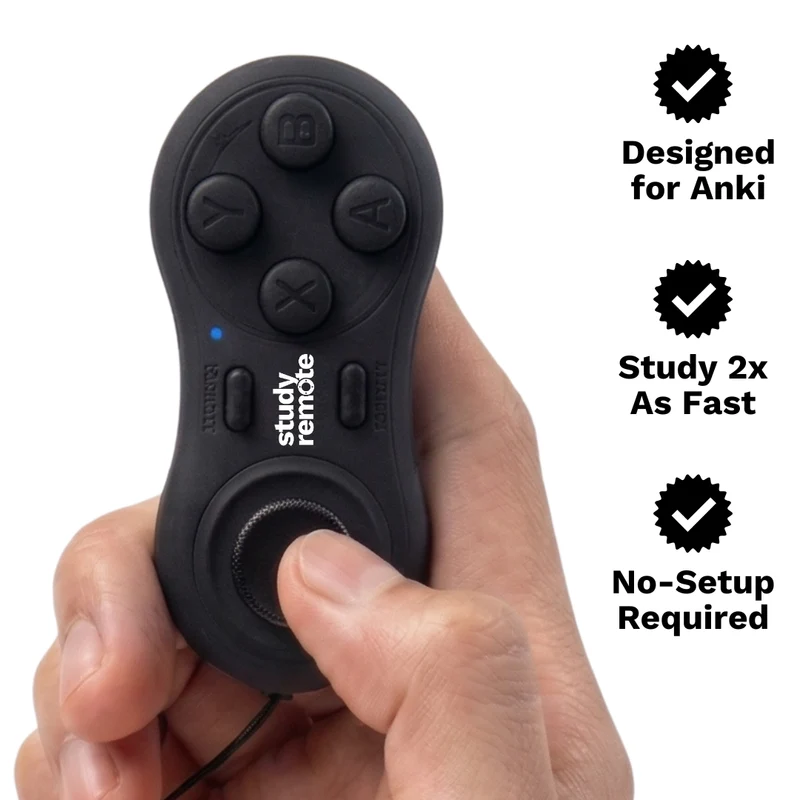
For a quick MODI Anki remote setup, check that the remote is charged, choose the correct connection mode for your device, pair through Bluetooth, then test one review action inside Anki or the mobile app before changing anything else. Use Keyboard Mode for the standard desktop workflow, or Switch Mode when you need mobile gamepad controls or desktop add-on remapping.
MODI is an independent Bluetooth accessory for Anki review workflows, not an official Anki, AnkiMobile, AnkiDroid, Apple, Google, Microsoft, Amazon, or Quizlet product. That distinction matters because pairing belongs to the operating system, while review commands belong to the app you are using. A clean quick start separates those layers: confirm power, connect the remote, open the study screen, then verify that the expected button press produces the expected action. For a concrete example of these controls in one device, MODI Anki Remote documents its supported platforms, connection modes, and setup paths.
Charge
Before pairing, give the remote enough charge to complete setup without guessing from undefined light patterns. A quickly flashing red LED means low battery. While charging, the LED flashes green, and when charging is complete, the charging LED turns off. The manual lists a 3.7 V, 330 mAh battery and up to about 16 hours of continuous use under its stated conditions, but that should be treated as an approximate operating figure rather than a guaranteed session length.
For the simplest first setup, keep decorative lighting off unless you need it, because maximum practical battery life depends on that choice. Double-click the Light button to turn decorative lights on or off. If the remote appears asleep, press Home to wake it. MODI automatically sleeps after about 2.5 minutes without a Bluetooth connection or 5 minutes of inactivity, and you can manually sleep or turn it off by holding Home for 3 seconds.
Mode
Choose the mode before opening Bluetooth settings, because each mode presents different input behavior. Keyboard Mode is intended for macOS, Windows, and Linux desktop Anki use with preset keybindings, and the default Keyboard Mode workflow does not require an Anki add-on. It sends keyboard-style commands that desktop Anki can already recognize, including common review controls such as Space or Enter for reveal or Good, and number keys when answer buttons are available.
Switch Mode is the standard choice for AnkiMobile on iPhone and iPad and for AnkiDroid on Android because it exposes gamepad-style inputs those apps can map. It is also the desktop choice when you want custom remapping through the optional MODI add-on. Pick one mode for the device you are setting up now. When moving between modes later, plan to forget saved MODI entries and pair again rather than stacking old Bluetooth records.
Pair
To pair in Keyboard Mode, open your computer’s Bluetooth settings first. Hold A + Home for one second, then select the MODI connection when it appears. After the connection succeeds, the center LED becomes solid green. Leave Anki closed or open; the important part at this stage is operating-system pairing. Once the system reports the device connected and the LED confirms Keyboard Mode, continue to the study screen and test a basic review command.
To pair in Switch Mode, open Bluetooth settings on the phone, tablet, or computer you are using. Hold Y + Home for one second, then select the MODI connection. A successful Switch Mode connection shows a solid blue center LED. If you previously paired the remote in another mode, forget every saved MODI or Anki remote entry first. Saved records can cause the host device to reconnect using an old profile, which makes testing unnecessarily confusing.
Test
After pairing, test one simple command before configuring a full layout. On desktop Anki in Keyboard Mode, open a review card and press the button assigned to Space, Good, or another documented preset action. The goal is not to finish a study session; it is to confirm that Bluetooth is connected, the remote is in the intended mode, and Anki is receiving the input. If the first action works, then continue with your normal review controls.
On AnkiMobile or AnkiDroid, pair in Switch Mode and test inside the app’s control settings before judging the remote. In AnkiMobile, open Settings, then Review, then Gamepads, and assign the desired actions. In AnkiDroid, open Settings, then Controls, then Set Key Binds. On AnkiDroid, X-Y-B-A inputs can appear visually as Y-X-A-B because of a third-party display mapping issue; assigned commands can still work normally despite that label mismatch.
Adjust
If the default desktop Keyboard Mode controls are enough, stop there. MODI includes preset inputs for Again, Hard, Good or Next, Easy, Undo, Suspend, Escape, Spacebar, and direction-key navigation, so many desktop review workflows need no extra setup. If you want custom desktop mappings, install the optional MODI Anki add-on using code 406900239 through Anki’s add-on menu, restart Anki, then open the MODI Anki Remote menu to configure buttons.
Remember that Anki add-ons extend desktop Anki and may need updates after Anki changes. The add-on is useful for remapping, but it is not required for the default Keyboard Mode path. Mobile setup is different: AnkiMobile and AnkiDroid provide their own configurable action lists, so assign actions inside those apps instead of expecting the desktop add-on to control them. Treat the app’s control menu as the source of truth for what a button does there.
Troubleshoot
If the remote connects but does nothing, work through the layers in order. First confirm the LED color matches the mode you intended: green for Keyboard Mode, blue for Switch Mode. Next, forget every saved MODI or Anki remote Bluetooth entry on the host device, repeat the full pairing steps, and test a single command again. This same forget-and-repair process is the preferred starting point when moving the remote to another phone, tablet, or computer.
If a fresh pairing still connects but remains unresponsive, restart the host device and try again before assuming a product fault. Bluetooth state, saved pairings, battery level, app focus, and the app’s own control settings can all affect the result. For deeper setup decisions, move next to the focused guide that matches your situation: desktop setup, mobile keybinds, mode selection, add-on configuration, battery behavior, or basic Quizlet browser controls in Keyboard Mode.
